Dignited (2019): Export a Wikipedia page as a PDF
https://dignited.com/44778/how-to-export-a-wikipedia-page-as-a-pdf
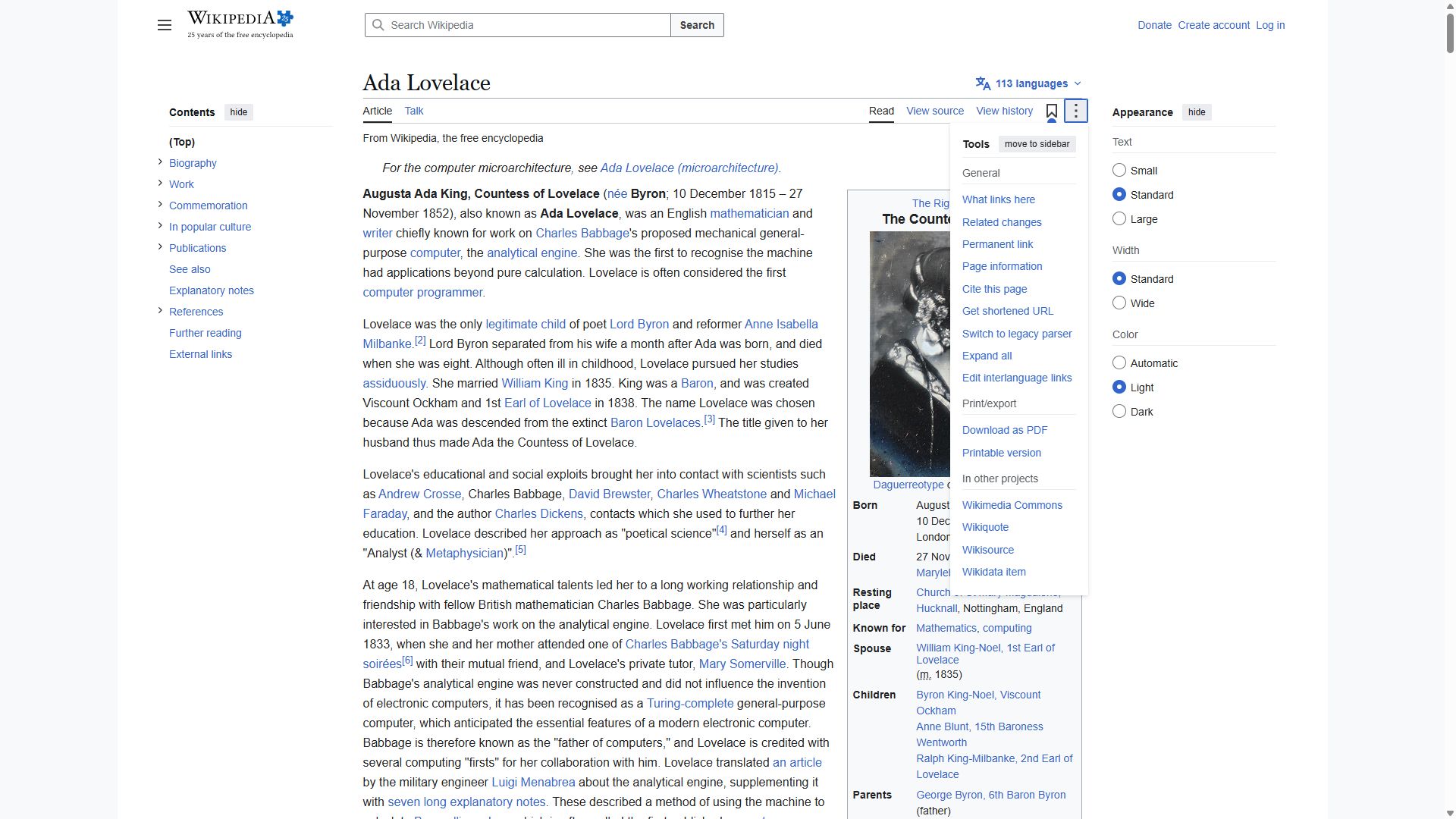
1Locate the Print/export section in the left panel of the page.drifted
Real pathTools
ReadClick Tools.
VerdictThe doc's words no longer work. Kane found the real path; the rewrite passed a literal run in loop 1.
ReviewConfirmed. Real drift. The left panel no longer has a Print/export section; it is in the Tools menu. The proven rewrite (Click Tools) is correct, and step 2 (Select Download as PDF) then works as written. · approved by Darkfallx
What Kane did
Literal failed
action · 13.8 cr · 51s- navigate: Navigate to https://en.wikipedia.org/wiki/Ada_Lovelace
- wait: Waiting after locating the requested Print/export element
The run could not reach Print/export because it was hidden inside the unopened Main menu, while the instructions allowed clicking only Print/export itself.
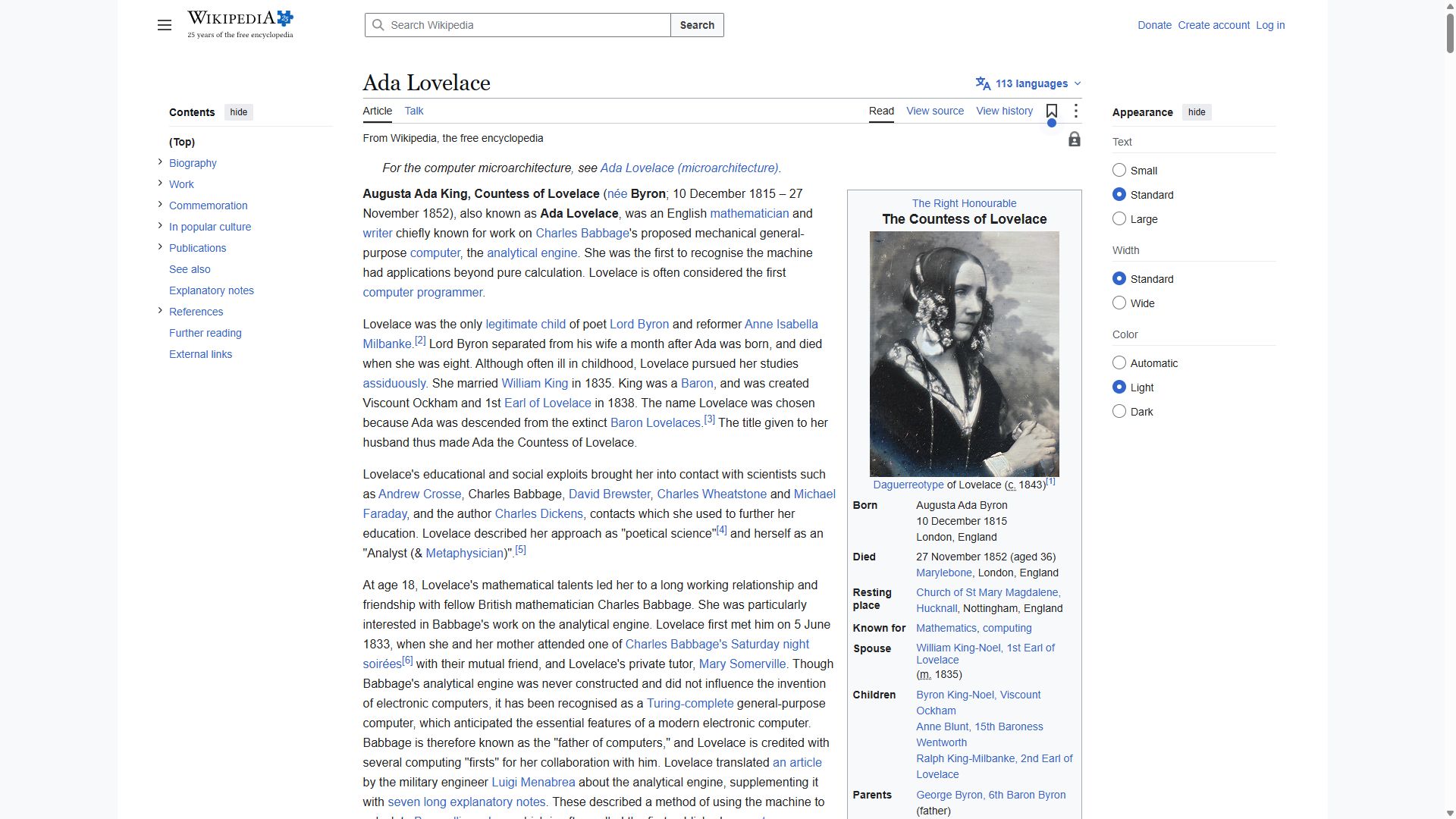
Kane's screenshot at the end of this run, from its sealed evidence pack
Follow these steps literally, one at a time, from the current page. Click only what each step names. Never type a URL, search, or take another route.
Where to find them, in the tutorial's own words: "Locate the Print/export section in the left panel of the page."
1. Click the element whose visible label is exactly 'Print/export'.
If the page you end on has a main heading, store it as 'landed_on'; a page without a heading is fine.
Goal passed
testing · 31.7 cr · 112s- navigate: Navigate to https://en.wikipedia.org/wiki/Ada_Lovelace
- click: Clicking Tools to open print and export options
- wait: PRIMARY: the article's print and export options are shown on screen
- analyze: the page you end on has a main heading
- assert: the article's print and export options are shown on screen
- analyze: ANALYZE(textual_visual, "The current page's main heading is saved as {{landed_on
- wait: Waiting complete verification after saving the current page's main heading
- wait: Waiting after all print and export option checkpoints have passed
displayed print and export options on Wikipedia
Clicked, per the evidence pack: Tools
Kane's screenshot at the end of this run, from its sealed evidence pack
Goal: the article's print and export options are shown. Reach it from the current page by clicking through the visible UI, by any route. Never type a URL or use the address bar.
Hint: an old tutorial said "Locate the Print/export section in the left panel of the page.", but those labels may have moved or been renamed.
When the goal is met, verify it on screen. If the page you end on has a main heading, store it as 'landed_on'; a page without a heading is fine.
Proof · loop 1 passed
action · 25.4 cr · 93s- navigate: Navigate to https://en.wikipedia.org/wiki/Ada_Lovelace
- click: Clicking Tools in the page navigation
- analyze: The page you end on has a main heading.
- analyze: the main heading is saved as {{landed_on}}
- wait: Waiting verification is complete
- wait: Waiting after completing the Tools click and heading checkpoint
clicked Tools on Wikipedia
Clicked, per the evidence pack: Tools
Kane's screenshot at the end of this run, from its sealed evidence pack
Follow these steps literally, one at a time, from the current page. Click only what each step names. Never type a URL, search, or take another route.
Where to find them, in the tutorial's own words: "Click Tools."
1. Click the element whose visible label is exactly 'Tools'.
If the page you end on has a main heading, store it as 'landed_on'; a page without a heading is fine.
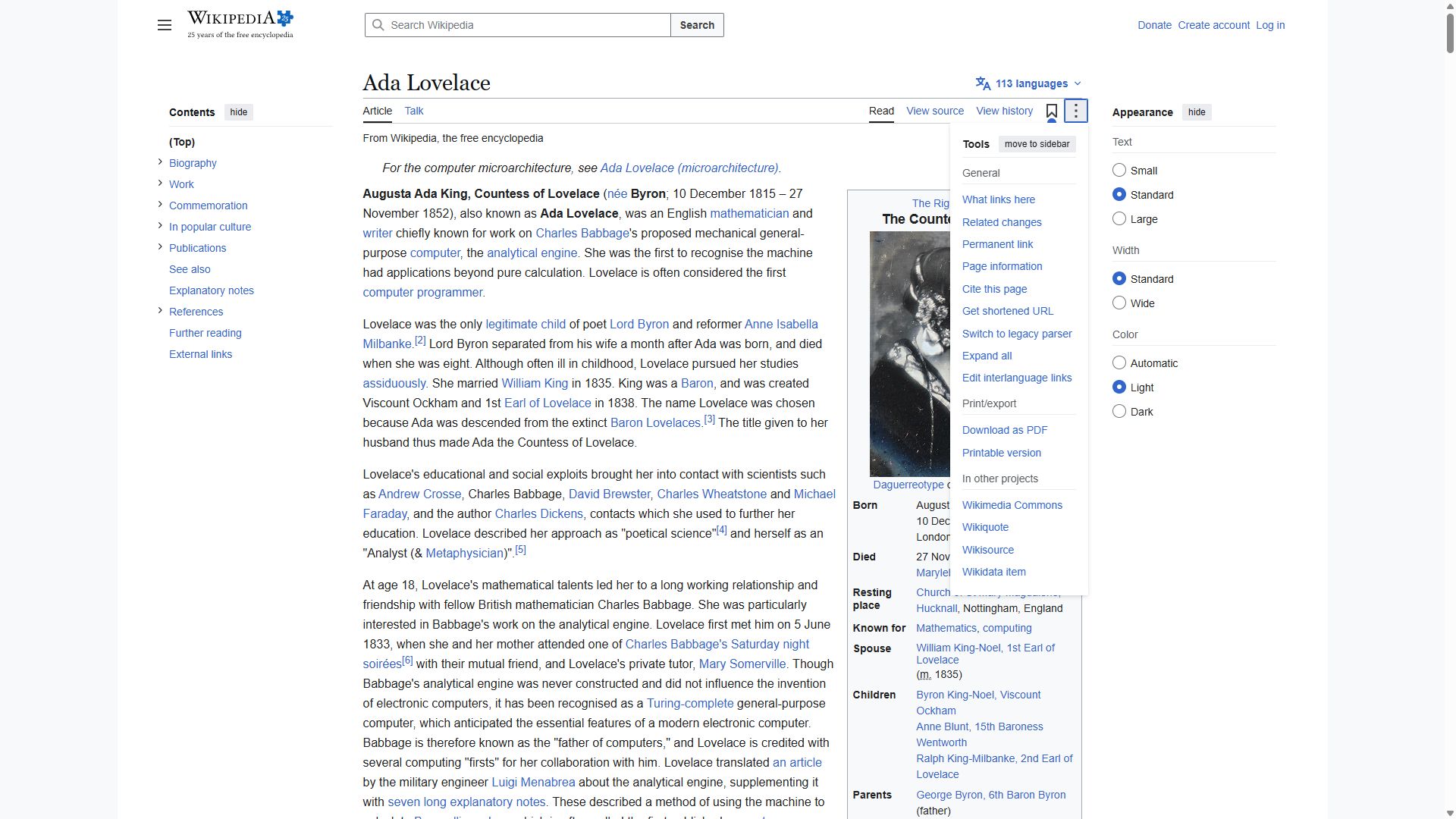
2Select Download as PDF from the list.accurate
VerdictKane followed the doc's exact words and reached the goal.
What Kane did
Literal passed
action · 26 cr · 81s- navigate: Navigate to https://en.wikipedia.org/wiki/Ada_Lovelace
- click: Clicking the Tools menu button
- click: Clicking Download as PDF in the Print/export menu
- analyze: the page you end on has a main heading
- analyze: it is stored as {{landed_on}}
- wait: Waiting after checkpoint verification
- wait: Waiting after checkpoint verification
opened the Download as PDF page on Wikipedia
Clicked, per the evidence pack: Tools → Download as PDF
Follow these steps literally, one at a time, from the current page. Click only what each step names. Never type a URL, search, or take another route.
Where to find them, in the tutorial's own words: "Select Download as PDF from the list."
1. Click the element whose visible label is exactly 'Download as PDF'.
If the page you end on has a main heading, store it as 'landed_on'; a page without a heading is fine.